
Tracking code & pixel
Install tracking code in Elementor
Place the Apresly code in an HTML widget, update the page and verify the connection.
Added to the help center: October 12, 2026
On this page
Instructions
You need to copy the tracking code into the HEAD section of each page where you want to deploy Apresly solutions.
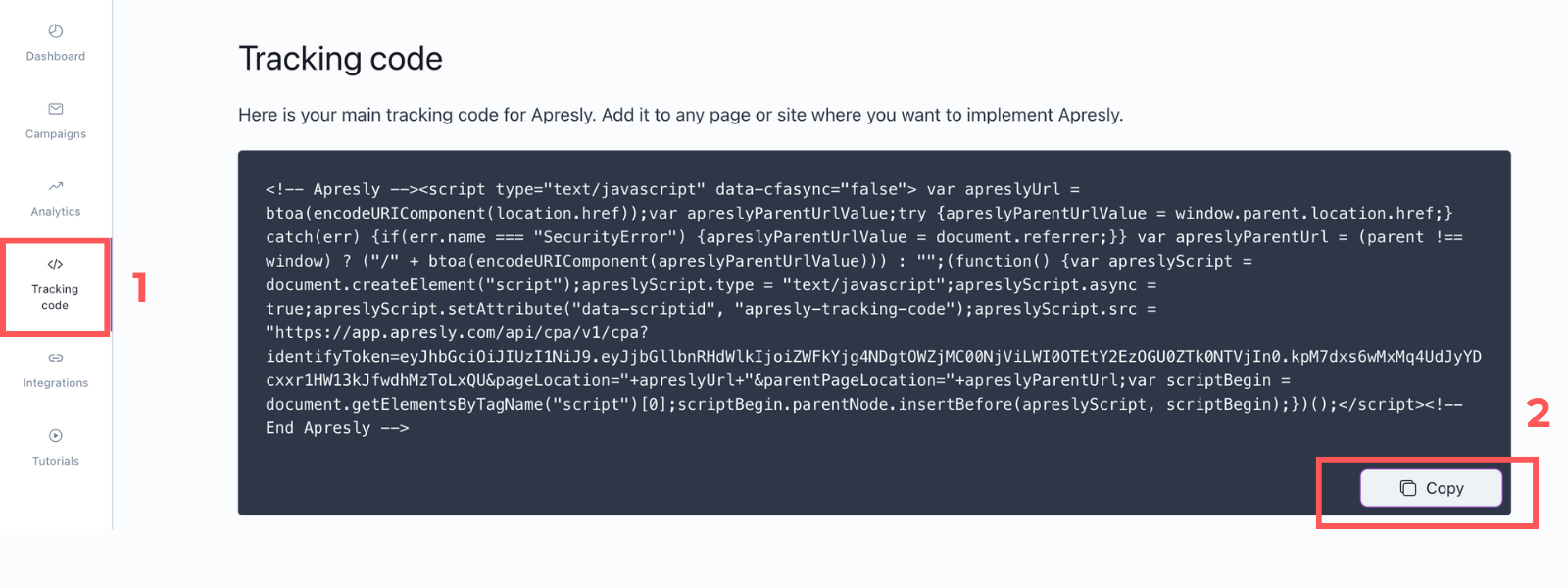
- Log in to your Apresly account. From the side menu on the left, select “Tracking code” (1), then copy it (2).
- Open the page to the Elementor editor panel.
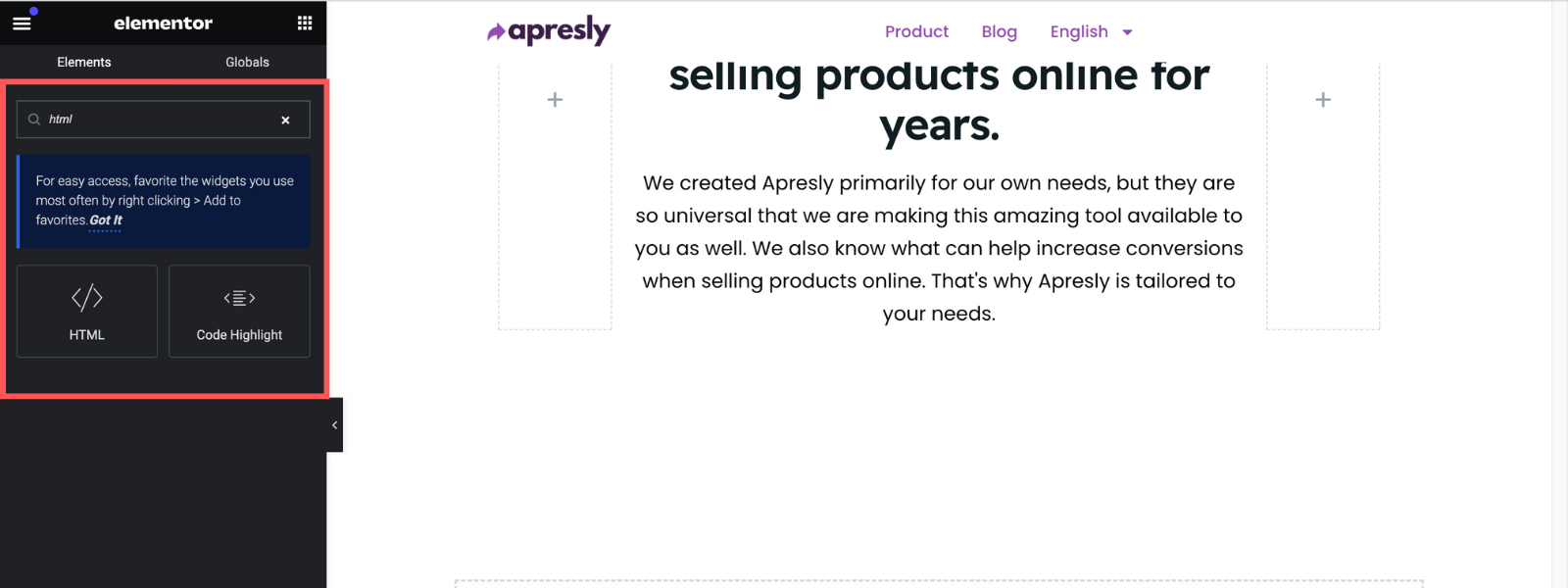
- On the side bar on the left, search for the widget named “HTML” and drag and drop the HTML widget into any place on your page.
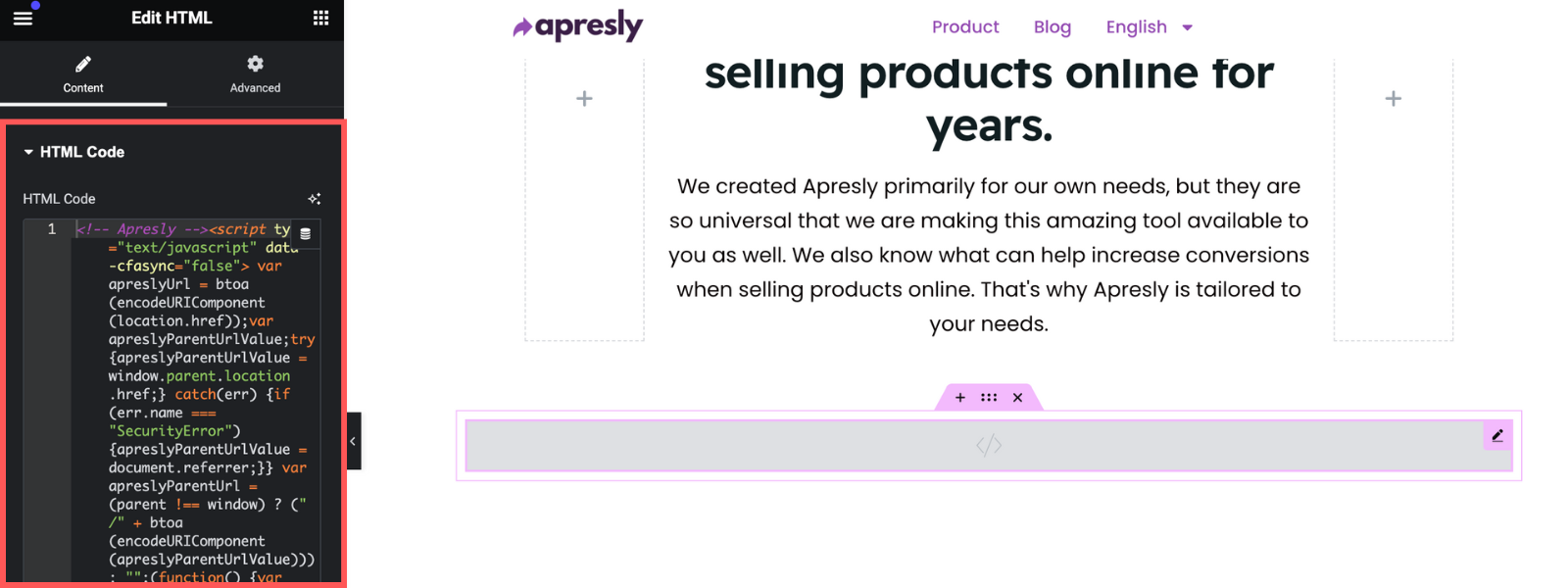
- Paste the copied code from Apresly into the “HTML code” field and update.
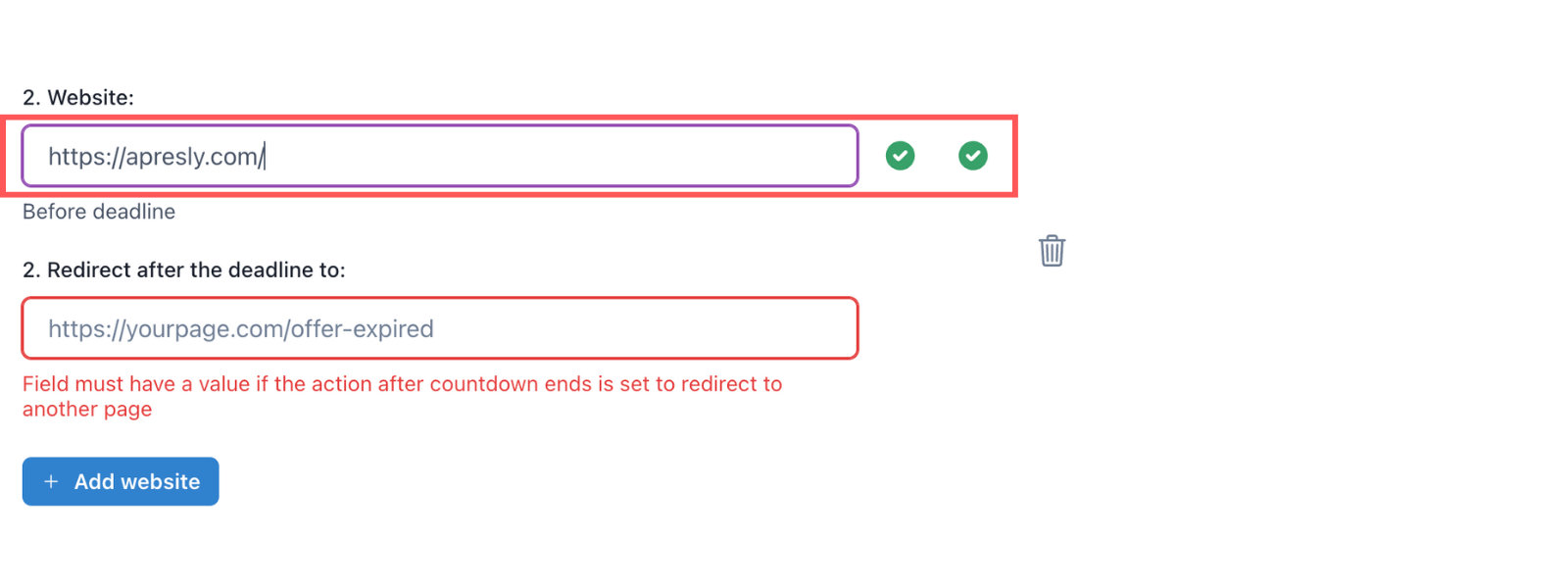
If the tracking code has been implemented correctly, when configuring a campaign in Apresly, a green check should appear next to the page on which you want to display the countdown timer.
Next step
Create your first campaign or follow a campaign setup guide.