
Tracking code & pixel
Install tracking code in WordPress
Add Apresly to a WordPress page with a Custom HTML block and check the installation.
Added to the help center: October 12, 2026
On this page
Instructions
You need to copy the tracking code into the HEAD section of each page where you want to deploy Apresly solutions.
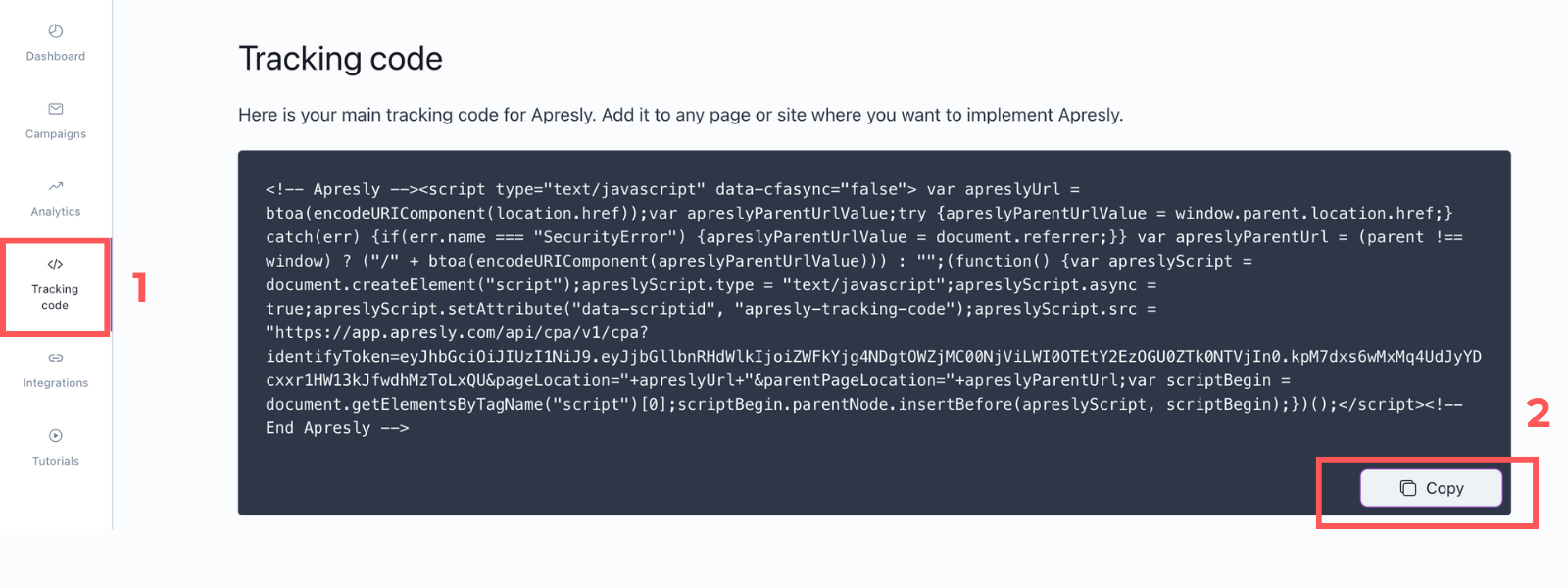
- Log in to your Apresly account. From the side menu on the left, select “Tracking code” (1), then copy it (2).
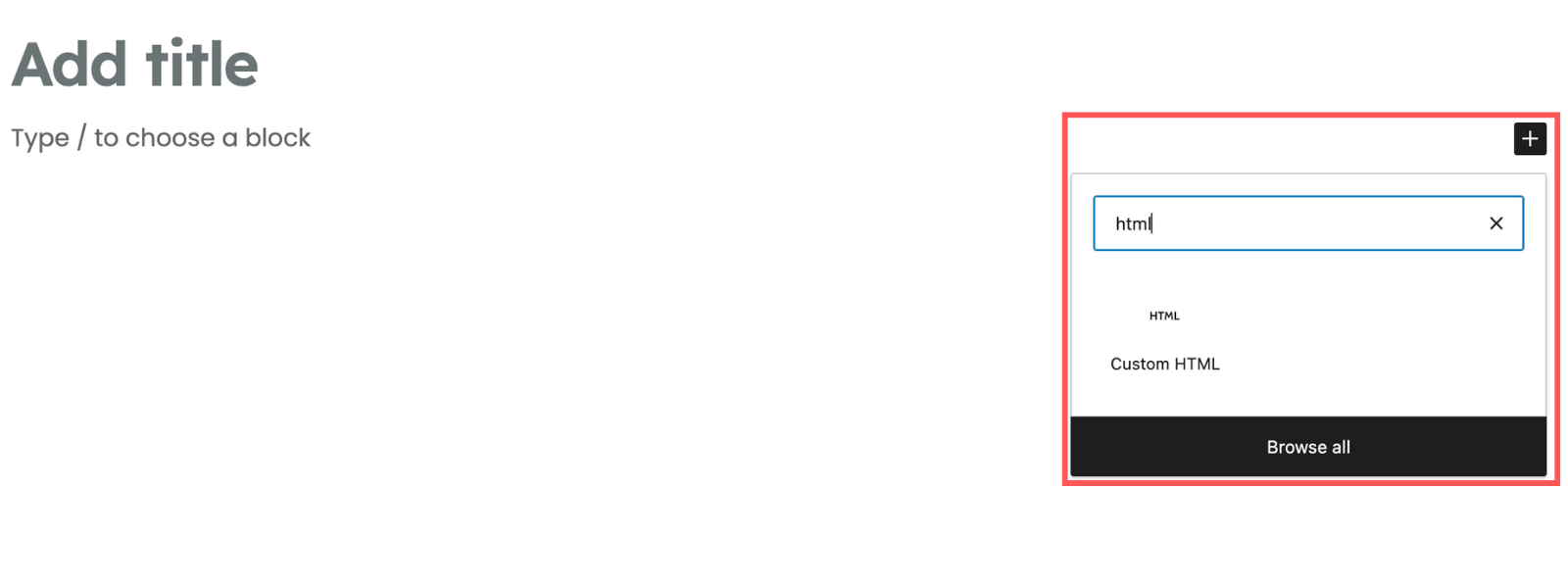
- Go to edit the selected page in Wordpress and add the block “Custom HTML”
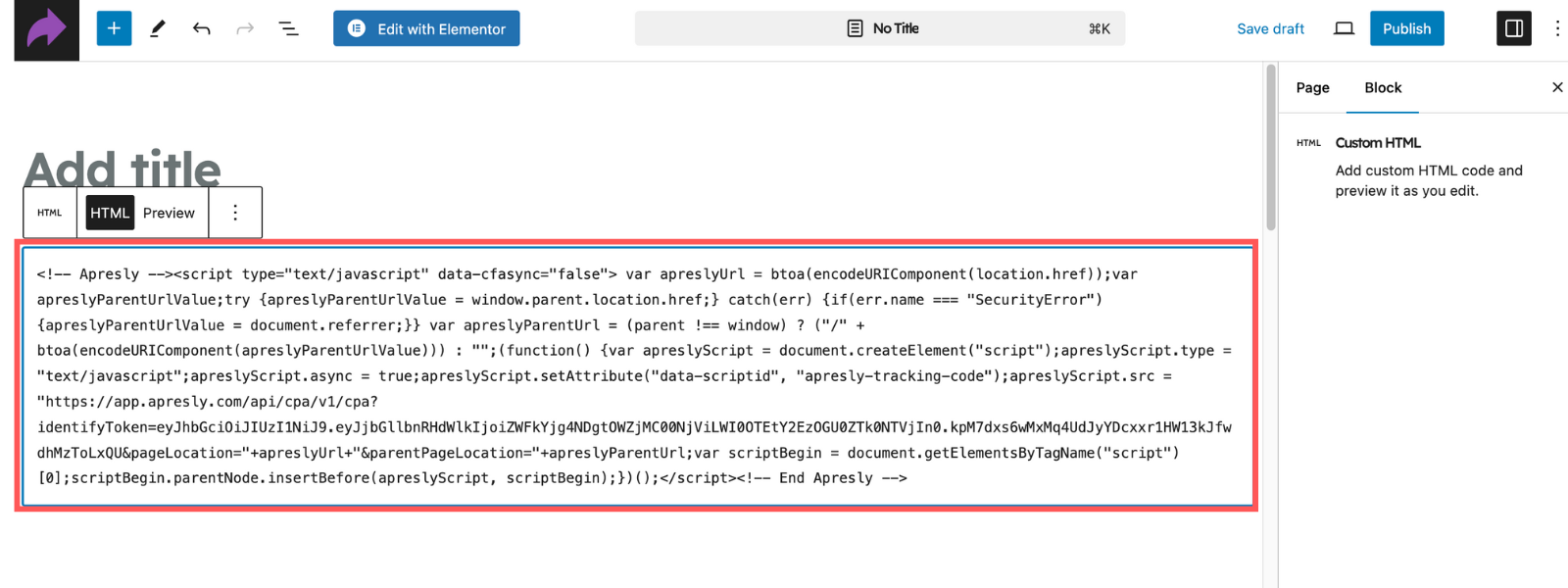
- Paste the copied code from Apresly into the “Custom HTML” field and Publish or Update.
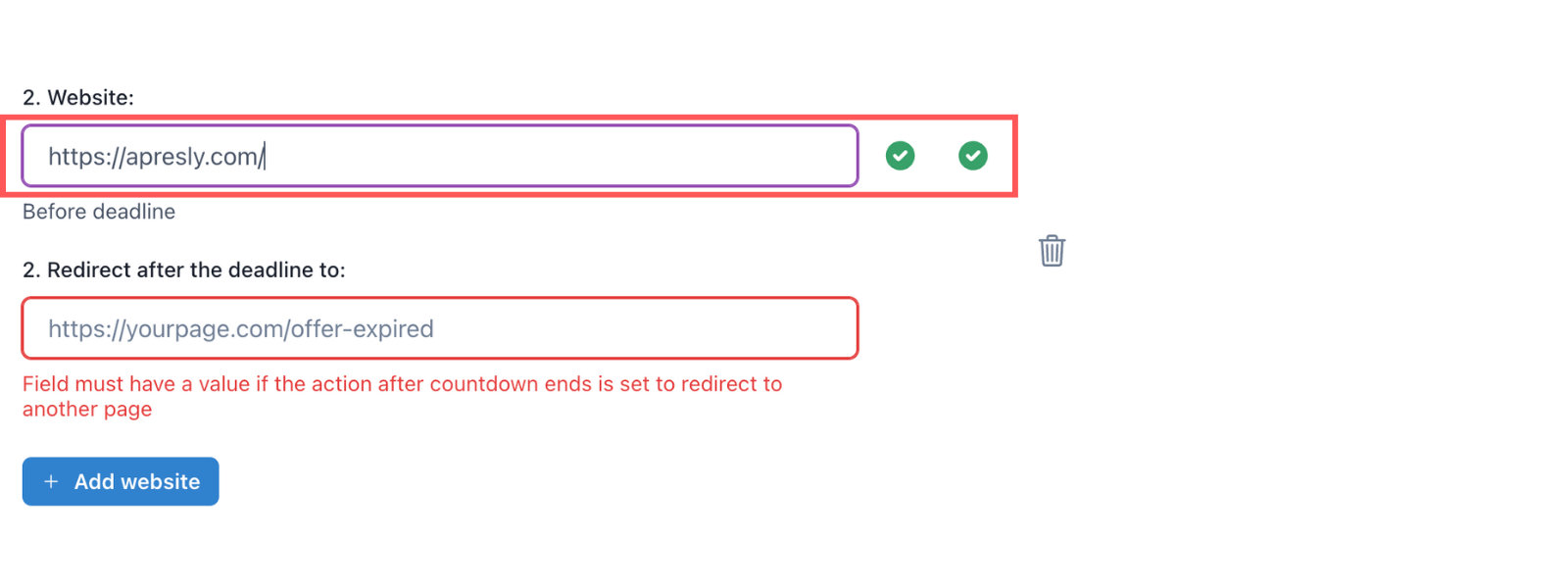
If the tracking code has been implemented correctly, when configuring a campaign in Apresly, a green check should appear next to the page on which you want to display the countdown timer.
Next step
Create your first campaign or follow a campaign setup guide.
If WordPress removes the script
Your account needs permission to save JavaScript. Some WordPress roles and hosting configurations remove scripts from Custom HTML blocks. If the code disappears after saving, use your site’s head-code settings or ask your site administrator to install it. WordPress Custom HTML documentation.